Free from Square Deal Studio
AutoStack
Focus stacking and HDR bracket sets, handled while you shoot. Made for Capture One and Helicon Focus on Windows: AutoStack watches your Capture One session, stacks each focus bracket with Helicon Focus, and files bright and dark exposures of the same shot together, ready for you to blend.
Every switch and adjustment sits on its own control page and applies to the next stack, with no restart: HDR sets on or off, brackets per set, the longest pause inside a set, the exposure-mismatch filter, CPU cores, Helicon's method, radius and smoothing, minimum frames and the split gap.
Why it's free: it saves hours on every shoot, and it should be helping more people than just us. Sharing our tools costs us nothing. What we bring to a business is how we see it.
AutoStack-2026-11-05.zip · 25 KB
Free and open source (MIT license).
Download AutoStackMade for Capture One (tethered capture) and Helicon Focus (stacking). Both are separate paid apps you need: captureone.com and heliconsoft.com.
Runs on
Windows 10 or 11
Works with
Capture One
 Helicon Focus
Not affiliated with or endorsed by Microsoft, Capture One or Helicon Soft.
What it does
You shoot. AutoStack handles what lands on disk, one bracket at a time, while you keep working.
- You shoot a focus bracketBuilt with a Sony A7R V in Focus Bracket mode, tethered to Capture One.
- Raws land in your Capture folder
.ARWor.DNG. AutoStack waits for each file to finish writing. - Frames get groupedBy capture time. It learns each bracket's rhythm, so 0.5 s or 5 s intervals both work.
- Misfires get left outSony raws only: frames clearly brighter or darker than the rest are dropped before stacking.
- Helicon stacks itOne 16-bit TIFF per bracket, filed by date. HDR sets get their own folder.
<root>\Capture\                 your Capture One session lives here
<root>\Stacked\2026-11-05\
    Session00123-Session00144_stack.tif
    HDR_Session00145-Session00160\
        Session00145-Session00160_A.tif   first exposure
        Session00161-Session00176_B.tif   second exposure
<root>\Stacked\.autostack\       hidden: log, processed list, temp copies
It does
- Ignore single shots (fewer than 3 frames)
- Re-stack a bracket when late frames turn up
- Retry a failed render on fewer cores, at low priority so Capture One stays responsive
- File every 2 to 5 brackets in a row as one HDR set, lettered A, B and on
- Give you a control page: pause, resume, quit, live status, the log and settings
It doesn't
- Merge HDR images. It stacks each exposure and files the set; you blend it, for example in Photoshop
- Control the camera or change exposures for you
- Include Capture One or Helicon Focus, which each need your own licence
- Work with other tether or stacking apps yet
- Run on a Mac
Requirements
Windows
Windows 10 or 11 with the built-in Windows PowerShell 5.1 (powershell.exe). PowerShell 7 isn't needed. No admin rights needed.
Helicon Focus
Installed and licensed. AutoStack was built with Helicon Focus 8 at C:\Program Files\Helicon Software\Helicon Focus 8\HeliconFocus.exe. If yours lives elsewhere, you set the path once. Buy it from heliconsoft.com.
Helicon reads raw files through Adobe DNG Converter, which is free from Adobe. Install it if Helicon asks.
Capture One
Installed and licensed, for tethered capture. AutoStack is made for Capture One: it watches the session's raw files (.ARW or .DNG) and skips Capture One's own CaptureOne, Trash, Selects and Output folders. Built and used with Capture One 16 and a Sony A7R V. Buy it from captureone.com.
Disk layout
One root that holds a Capture folder (your Capture One session lives there, subfolders included) and a Stacked folder for results. The root is either a drive you name by its volume label, so it's found whatever letter Windows gives it, or a plain folder. Leave both blank and it uses Pictures\AutoStack.
A stack from a 61 MP camera is about 350 MB, and AutoStack keeps a temporary copy of one bracket's raws while it works.
Microsoft Edge
Optional. It opens the control page as its own window. Without it, your default browser opens.
Install with your AI assistant
Copy the prompt below into whichever AI assistant you like to use: Claude, ChatGPT, Gemini or another. It has the facts the assistant needs, and it asks to go one step at a time so you can follow along. Keep the AutoStack folder open while you chat.
I'm installing AutoStack, a free Windows tool from Square Deal Studio, made for Capture One (tethered capture) and Helicon Focus (stacking). It watches the folder my Capture One tether session saves raw files into, groups focus brackets, and stacks each one with Helicon Focus. Please walk me through the install one step at a time. Wait for me to confirm each step, and explain any command before I run it. Don't suggest changing system-wide security settings or running anything as Administrator.

Facts about AutoStack:
- Download: AutoStack-2026-11-05.zip (about 25 KB). SHA-256: 4e42df20b4e236b3a9f170978c8941c65d8c0446be247aec38477c3f326768a0. Check it first with: Get-FileHash .\AutoStack-2026-11-05.zip -Algorithm SHA256
- Inside is one folder, AutoStack, with: AutoStack.ps1 (the engine), AutoStackUI.ps1 (a local control page at http://localhost:8765/, reachable only from this PC), ui.html (the page), Start-AutoStack.ps1 (starts both hidden and opens the page), AutoStack.vbs (runs the starter with no console window), Install-Shortcut.ps1 (makes a desktop shortcut named AutoStack), README.md and LICENSE (MIT).
- It needs Windows 10 or 11 with the built-in Windows PowerShell 5.1 (powershell.exe), Capture One installed and licensed for tethered capture (AutoStack is made for it and isn't meant for other tether apps), and Helicon Focus installed and licensed for stacking (default path C:\Program Files\Helicon Software\Helicon Focus 8\HeliconFocus.exe). Both are separate paid apps. Microsoft Edge is optional.
- Where it goes: extract the zip into my Documents folder, which gives Documents\AutoStack. It writes settings.json and status.json next to the scripts, so the folder must be writable (not Program Files).
- Unblocking: Windows marks files downloaded from the internet. Before extracting, right-click the zip > Properties > tick Unblock > OK. If I already extracted it, unblock the files with: Get-ChildItem "$env:USERPROFILE\Documents\AutoStack" | Unblock-File
- Setup: in AutoStack.ps1, near the top, four lines are marked SET ME. DriveLabel = the volume label of the drive my shoot is on, or '' to use RootFolder. RootFolder = the folder to use when DriveLabel is '' ('' means Pictures\AutoStack). CaptureFolder = the subfolder my Capture One session lives in (default Capture). HeliconExe = the full path to HeliconFocus.exe. Ask me where my Capture One session saves raws and where Helicon is installed, then tell me exactly what to type on those lines. Stacks will go to <root>\Stacked\<date>\.
- Execution policy: only for the current PowerShell window, run: Set-ExecutionPolicy -Scope Process -ExecutionPolicy RemoteSigned. It ends when the window closes. Don't change the LocalMachine policy. If I want it to stick, -Scope CurrentUser is the most to use.
- Check the setup without Helicon: in PowerShell, in the AutoStack folder, run: .\AutoStack.ps1 -DryRun. It should print "Watching <root>\Capture -> <root>\Stacked" and stop. If it says the drive isn't connected, press Ctrl+C and fix DriveLabel.
- Make the desktop shortcut: .\Install-Shortcut.ps1. It prints "Shortcut written: ...\Desktop\AutoStack.lnk".
- First run: double-click AutoStack on the desktop. A page opens at http://localhost:8765/ and should show "idle" and my drive or folder. Then I shoot a throwaway focus bracket of 3 or more frames. About 12 seconds after the last frame lands, the page shows "stacking", and a file named <first>-<last>_stack.tif appears in <root>\Stacked\<today's date>\.
- If the page says the engine isn't running, the Helicon path is usually wrong: run .\AutoStack.ps1 in PowerShell to see the error, and Ctrl+C to stop it. If the state says "no drive", DriveLabel doesn't match. The log is <root>\Stacked\.autostack\autostack.log (a hidden folder).
Or install it by hand
- Unblock the zip. Right-click it, choose Properties, tick Unblock, click OK. Windows marks downloaded files; unblocking the zip first unmarks everything inside.
- Extract it into Documents. You get
Documents\AutoStack. Keep it out of Program Files, since AutoStack saves its settings next to the scripts. - Set your four lines. Open
AutoStack.ps1in Notepad and fill in the lines markedSET ME:DriveLabel(your drive's name in File Explorer, or''),RootFolder(used when there's no drive label;''meansPictures\AutoStack),CaptureFolderandHeliconExe. Make your Capture One session inside the Capture folder. - Open PowerShell in the folder (in File Explorer: File, then Open Windows PowerShell, or right-click in the folder and choose Open in Terminal) and allow scripts for this window only:
Set-ExecutionPolicy -Scope Process -ExecutionPolicy RemoteSigned - Check the setup:
.\AutoStack.ps1 -DryRunshould printWatching ...\Capture -> ...\Stackedand stop. It doesn't need Helicon. - Make the shortcut:
.\Install-Shortcut.ps1 - Start it from the AutoStack shortcut on your desktop, shoot a throwaway bracket, and look in
Stacked\<today's date>.
Using AutoStack
Start it from the desktop shortcut before you shoot. No console windows appear; everything shows on the control page at http://localhost:8765/.
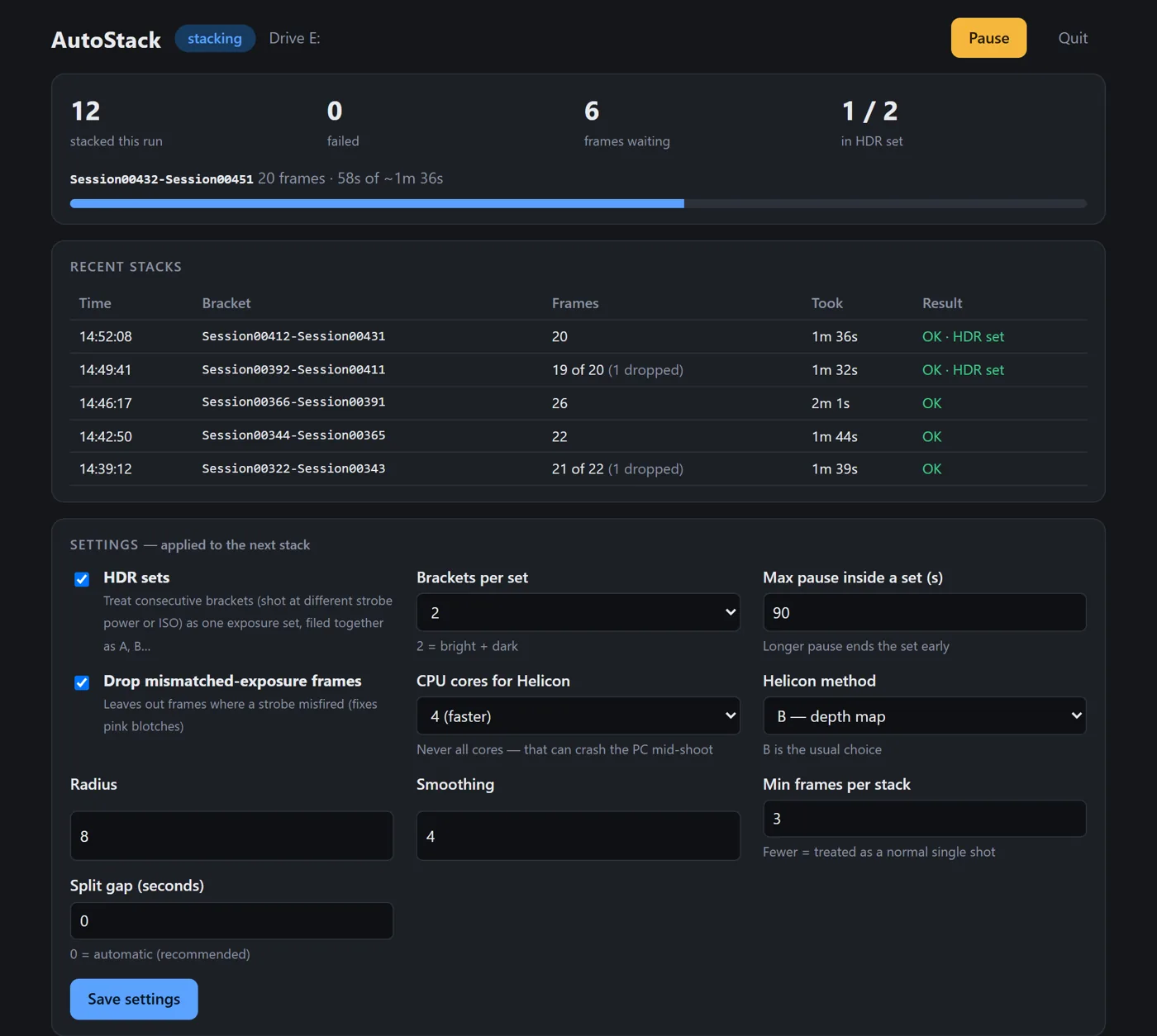
The control page
- Pause / Resume stops picking up new brackets. A stack that's rendering finishes first, and frames wait until you resume.
- Quit stops the engine and the page. It won't quit mid-render: pause, let the stack finish, then quit.
- Status shows the state (idle, collecting, copying, stacking, paused, no drive), stacks made and failed this run, frames waiting, a progress bar for the current stack, the last 12 stacks and the end of the log.
Settings
They apply to the next stack. No restart.
Off by default. Brackets per set: 2 to 5 (2 = bright + dark). Max pause inside a set: 90 s.
On by default. Leaves out frames where a strobe didn't keep up.
4 or 2. Never all cores; that can starve Capture One mid-shoot.
A, B (depth map, the default) or C, with radius 8 and smoothing 4.
3. Anything shorter is a normal single shot.
0 = automatic, which learns your interval. Set seconds to force it.
HDR sets
- Turn on HDR sets and pick brackets per set. Shoot one focus bracket at each exposure, one right after another.
- Change strobe power or ISO between them, never the aperture.
- Leave about 10 to 15 seconds between brackets so each one stacks on its own.
- The set lands in
Stacked\<date>\HDR_<first bracket>\as_A,_Band on, A being the first shot. - A pause longer than the max pause ends a set early. If a stack in a set fails, the set is dropped. Either way the good stacks stay as normal files.
- Blending is yours to do. In Photoshop: File > Scripts > Load Files into Stack with Auto-Align, then mask the darker exposure in where highlights clip.
Shooting tips
- Tripod, f/5.6 to f/8, SteadyShot off on the tripod.
- Focus Bracket with a step of about 2 to 3 and a 1 to 2 second interval.
- Electronic front curtain shutter, ISO 100 when you can, lossless compressed raw, the camera's PC Remote saving to the PC only.
- Strobes in Manual, under about half power at a 1 second interval, batteries charged. A strobe that can't recycle in time causes pink or green blotches; AutoStack drops those frames, but fewer misfires is better.
- Shiny parts: try the light first. Move strobes off the lens axis, flag them, or use a polarizer. Reach for HDR sets when that isn't enough.
- Helicon's TIFFs look flat and a little blue. In Camera Raw: set a profile, white-balance on the grey backdrop, then Remove Chromatic Aberration and Defringe.
Where things land
- Stacks:
<root>\Stacked\<date>\<first>-<last>_stack.tif, dated by the PC's clock, so a wrong camera clock doesn't matter. - Subfolders named
CaptureOne,Trash,SelectsorOutputare ignored, so moving picks around doesn't stack them twice. - The log and the list of handled frames live in the hidden
Stacked\.autostackfolder.
Stacking a bracket again
- Quit AutoStack, delete that bracket's lines from
Stacked\.autostack\processed.txt, and start it again.
Troubleshooting
The page says the engine isn't running
Usually HeliconExe points to the wrong place. Run .\AutoStack.ps1 in PowerShell from the folder to see the message; Ctrl+C stops it.
The state says "no drive"
DriveLabel doesn't match the drive's name in File Explorer, or the drive isn't plugged in.
Nothing happens after a bracket
Check the Capture One session saves into the Capture folder, the bracket has 3 or more frames, and AutoStack isn't paused. It waits about 12 seconds after the last frame.
Two brackets came out as one stack
Leave more time between them, or set a fixed split gap.
"FAILED: no stack written"
Helicon couldn't stack that bracket after every retry. Stack those frames by hand in Helicon; AutoStack won't try them again on its own.
"leaving out N frames with mismatched exposure"
A strobe didn't fire at full power on those frames. Lower the power, slow the interval or charge the batteries.
Adobe DNG Converter closes by itself
AutoStack closes any open DNG Converter before each stack, because one stuck copy blocks every conversion Helicon makes. Don't use it by hand while AutoStack runs.
"AutoStack is already running"
Only one engine runs at a time. Use the page that's open, or go to http://localhost:8765/.
A security warning every time it starts
The files are still marked as downloaded. Unblock them: Get-ChildItem "$env:USERPROFILE\Documents\AutoStack" | Unblock-File
The camera drops off USB after a burst
Turn off USB selective suspend in Windows power options and keep the computer on its charger.
How it was tested. The stacking engine has been used on real shoots: a Sony A7R V tethered to Capture One, stacked with Helicon Focus 8. The control page and HDR sets were tested with a stand-in for Helicon, so do a throwaway pair of brackets with HDR sets on before a real job. To remove AutoStack, delete the desktop shortcut and the AutoStack folder; your stacks stay where they are.
Stuck, or got it working?
Either way, we'd like to hear. Questions about AutoStack, or about what Square Deal Studio does for small businesses, go to the same inbox.
hello@squaredealstudio.com